
Trying to clean up a slow PC shouldn’t feel like walking through a mall kiosk. Many Windows 11 users want less junk, fewer startup slowdowns, and a bit more privacy, but they don’t want ads, upsells, or tools that act like a magic wand.
That’s why the best CCleaner alternative for Windows 11 often isn’t the one with the longest feature list. In many cases, Windows 11 already gives you solid cleanup tools, and a third-party app only makes sense if it solves a real problem, like deeper privacy wiping or faster junk-file cleanup.
This guide keeps it simple. First, you’ll see when built-in Windows tools are enough. Then you’ll get a short list of safer options for different needs, from lightweight cleanup to privacy-focused wiping and all-in-one maintenance suites. The goal is clear: pick the smallest tool that does the job, not the loudest one.
What to look for in a good CCleaner alternative on Windows 11
A good cleaner should remove clutter without creating new problems. That means clear options, sensible defaults, and no pressure to run risky fixes.
Start with Windows 11 tools before you install anything
For many people, Windows 11 already covers the basics. Storage Sense can clear temporary files automatically, Disk Cleanup still works for older cleanup tasks, and Settings makes it easy to uninstall unused apps. You can also manage startup apps in Settings or Task Manager, which often helps more than any cleaner.
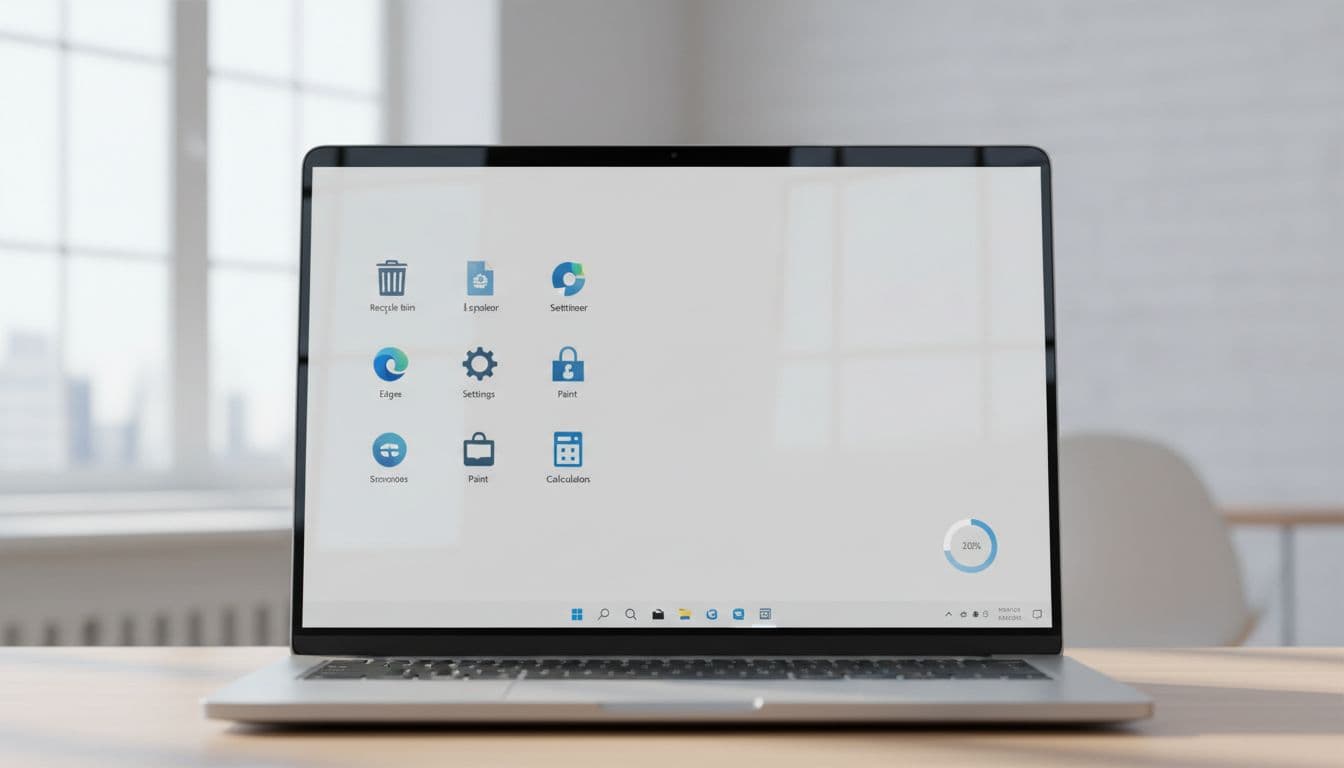
If your main problem is low storage or too many apps loading at boot, these built-in tools may be all you need. For a broader look at current options, TechRadar’s best PC cleaner roundup gives a useful snapshot of how free and paid tools compare.
Choose cleanup features that solve real problems
Focus on features that matter in daily use: junk-file removal, browser cache cleanup, startup control, privacy trace wiping, and secure file deletion. Most people don’t need duplicate modules for driver updates, registry scans, or “AI optimization.”
Think of it like cleaning a room. Taking out the trash helps. Rearranging every drawer just because you can usually doesn’t.
Be careful with registry cleaners and one-click promises
Registry cleaning is often oversold. On modern Windows 11 systems, it rarely gives a real speed boost, and aggressive changes can cause errors that are hard to trace later.
If a tool promises a huge performance jump from one click, lower your expectations and read every option first.
The best CCleaner alternative Windows 11 users can try right now
Recent 2026 reviews point to a few standouts. Here’s the quick view first.
| Tool | Best for | Watch out for |
|---|---|---|
| BleachBit | Free deep cleaning, privacy | Feels advanced for beginners |
| PrivaZer | Privacy-focused wiping | Scans can take longer |
| System Ninja | Fast, lightweight cleanup | Fewer extras |
| Ashampoo WinOptimizer | Safer all-in-one suite | Paid after trial |
| IObit Advanced SystemCare | Broad toolkit | More upgrade prompts |
The takeaway is simple: free tools handle most cleanup jobs well, while paid suites make sense only if you want one dashboard for many tasks.
BleachBit is the best free pick for deep cleaning and privacy
BleachBit stands out because it’s free, open-source, and strong at cleaning temp files, browser traces, and leftover data. It can also shred files and wipe free space, which helps if privacy matters. Current 2026 reports show solid Windows 11 compatibility and no major issues.
Still, BleachBit isn’t as hand-holding as some beginner tools. Review each item before you clean. For another up-to-date overview, EngineerHow’s 2026 alternatives guide also ranks it highly.
PrivaZer works well if privacy cleanup matters most
PrivaZer goes deeper into usage traces, cookies, history, and leftover data across drives and storage devices. That’s great for privacy-focused users. The tradeoff is time, because scans can be slower and the app feels more specialized.
One caution: recent summary data is less clear on fresh 2026 updates than it is for BleachBit, so it’s smart to verify current Windows 11 support before relying on it long-term.
System Ninja is a simple option for fast, lightweight cleanup
System Ninja keeps things lean. It removes junk quickly, runs well on Windows 11, and is often praised for being lightweight and portable. That’s a plus if you want a basic tool without extra clutter.
It won’t replace a full maintenance suite, but many people don’t need one anyway.
Ashampoo WinOptimizer and IObit suit users who want an all-in-one suite
These two fit users who want one app for cleanup, startup control, privacy checks, and extra tuning. Ashampoo WinOptimizer generally feels clearer and more restrained, which makes it easier to trust. Recent reviews also note its modern interface, custom scans, and no major Windows 11 issues.
IObit Advanced SystemCare offers a broader toolkit and gets good ratings in 2026, but the free version can push upgrades more often. If prompts annoy you, Ashampoo is the calmer choice.
Which tool is best for your needs, not just the most features
The right pick depends on your habits, not the size of the toolbox.
Pick this if you want the safest no-fuss cleanup
Start with Windows 11 tools. If you still want more, try System Ninja. It stays lightweight, and it doesn’t bury you in settings.
Pick this if you want stronger privacy controls
Choose BleachBit if you want strong privacy cleanup with solid current support. Pick PrivaZer if you want deeper trace wiping and don’t mind slower scans. If you’re comparing the two, this BleachBit vs PrivaZer comparison is a helpful starting point.
Pick this if you want one dashboard for maintenance tasks
Go with a paid suite only if you really want cleanup, startup tools, and extra tuning in one place. More features can save time, but they also bring more prompts and more settings to manage.
How to use a PC cleaner on Windows 11 without causing new problems
Even the best tool can cause trouble if you clean on autopilot.

Back up first and review what will be deleted
Create a restore point first. Then check what the app plans to remove, especially browser data, saved sign-ins, and download folders. If you don’t recognize an item, leave it alone.
Clean junk files regularly, but skip aggressive system tweaks
A monthly cleanup is plenty for most users. Also check startup apps and keep Windows updated. On the other hand, constant registry fixes and “turbo boost” claims usually create more noise than value.
Remember that slow PCs often need fixes beyond cleanup
Sometimes the real problem is low free space, too many startup apps, malware, old drivers, weak hardware, or not enough RAM. A cleaner can help, but it won’t turn an overloaded laptop into a race car.
For most people, the best move is still the simplest one. Use Windows 11’s built-in cleanup tools first, then add a third-party app only if you need more. BleachBit is the strongest free power option, PrivaZer is best for deep privacy work, System Ninja fits users who want a light touch, and paid suites make sense only when you want many tools in one place. Skip the hype, avoid risky one-click fixes, and choose the tool that solves your actual problem.