

Work doesn’t stay at a desk anymore. It moves from the office to the couch, from the airport gate to the job site, and often lands right on an iPad.
That shift matters because today’s project management software iPad users choose can handle far more than quick check-ins. A good app now lets you plan work, update tasks, share files, review timelines, and keep a team aligned without opening a laptop. This guide covers what to look for, which tools stand out in 2026, and how to pick the right fit for solo work, small teams, and larger teams.
What makes great project management software for iPad
Not every project tool that works on desktop feels good on a tablet. Some apps cram too much into a small space. Others turn simple updates into a tap-heavy chore.
Great iPad project management apps feel native. They open fast, respond well to touch, and make common actions easy. You should be able to update a due date, comment on a task, or move work across a board in seconds. Offline access also matters, especially if you work while traveling or on job sites with weak service.
Recent 2026 roundups from PCMag’s best project management software guide and GetApp’s iPad project management app list keep pointing to the same pattern: the strongest tools combine mobile speed with real team features, not watered-down mobile extras.
The iPad features that actually improve daily work
Touch-first design is the first box to check. If buttons are tiny or menus hide basic actions, the app will feel like a desktop site wearing a tablet costume.
Apple Pencil support can help too, though not every team needs it. It’s most useful for markup, quick notes, or sketching ideas during meetings. Split View is more practical for daily work. You can keep a task list on one side and a calendar, file, or meeting notes on the other.
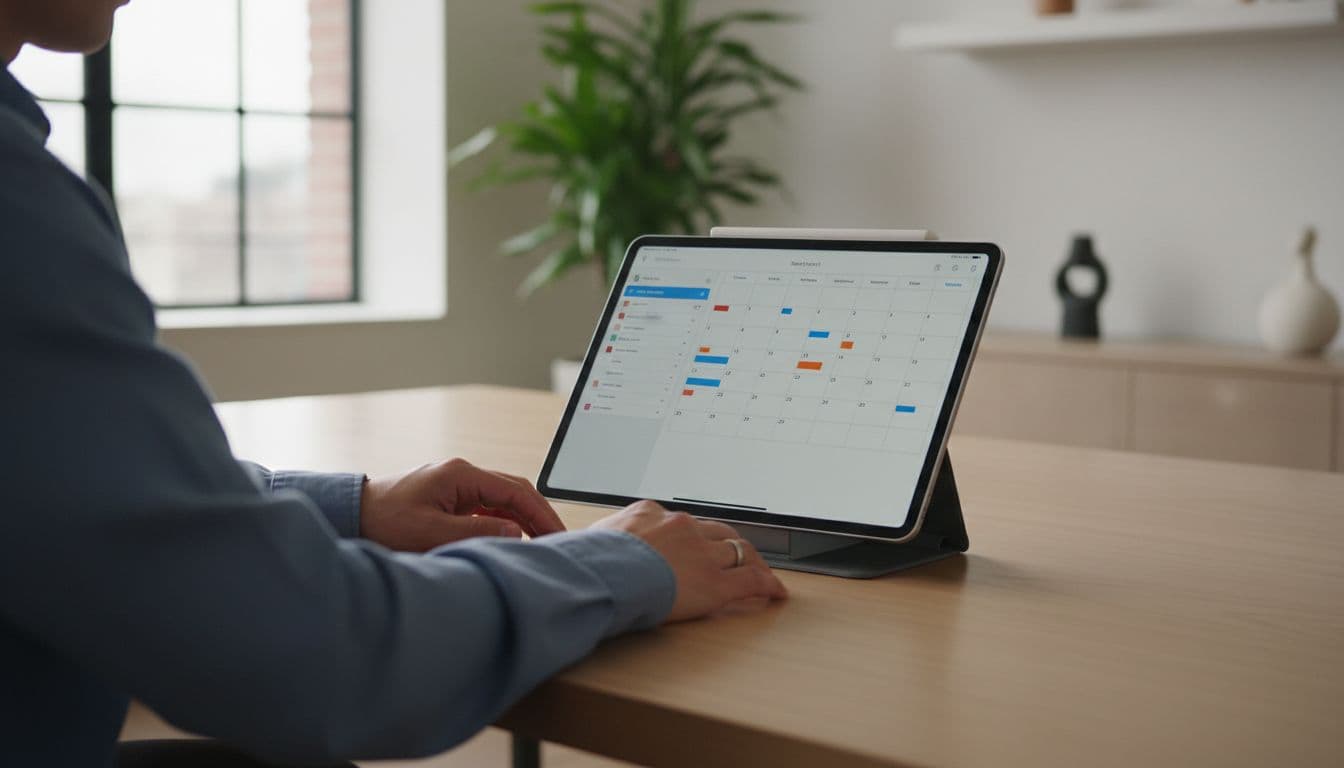
Smooth switching between views also saves time. Boards help with workflow stages. Lists are better for detail. Calendar and timeline views help you spot bottlenecks before they grow. Add reliable notifications and real-time sync, and the iPad becomes a real work device, not just a side screen.
On an iPad, speed matters more than feature count. If updating a task feels slow, teams stop updating tasks.
Must-have tools for planning, tracking, and team updates
At a minimum, your app should handle task assignment, due dates, comments, file sharing, and recurring work. Those are the basics that keep projects moving.
For simple projects, that may be enough. A solo consultant or small team often needs clean lists, boards, reminders, and shared notes more than deep reporting. In that case, too many layers just get in the way.
Larger teams usually need more structure. Dashboards help managers spot stalled work. Automations reduce repetitive steps. Time tracking matters for agencies, service teams, and billable work. Workload views help prevent one person from becoming the team’s overloaded backpack.
Collaboration tools also matter more on iPad than many buyers expect. Quick comments, status updates, and file previews keep work moving when no one is at a desk. If the app can’t support those everyday moments, it won’t earn a spot in your real workflow.
Best project management software for iPad in 2026
The strongest choices in 2026 all do the basics well, but each one leans in a different direction. Some focus on ease, others on control, and some lean hard into visual planning.
Here’s the quick view before the deeper breakdown:
| App | Best for | iPad strength | Watch out for |
|---|---|---|---|
| Asana | Teams that want simplicity | Clean lists, boards, calendars, fast updates | Less suited to finance-heavy workflows |
| ClickUp | Power users | Deep customization, many views, built-in tools | Steeper learning curve |
| monday.com | Visual teams | Flexible boards, strong mobile layout, automations | Can feel heavy for solo use |
| Wrike | Complex teams | Timelines, structured workflows, reporting | Takes longer to set up |
The short version is simple: if you want the easiest start, look at Asana or monday.com. If you want control, ClickUp stands out. If your projects have many moving parts, Wrike earns a close look.
Asana, a simple pick for teams that want an easy iPad app
Asana works well when teams want a polished iPad experience without a lot of setup drama. Its interface is clean, and common views like lists, boards, timelines, and calendars are easy to switch between.
That matters because most teams don’t want to wrestle with the tool itself. They want to update work fast and move on. Recent hands-on coverage, such as this Asana review for 2026, also points to its ease of use as a major strength.
Asana is less appealing for teams that need strong budget tracking or finance-first project controls. Still, for marketing, operations, and general team planning, it stays one of the safest iPad picks.
ClickUp, the best fit for power users who want more control
ClickUp is the Swiss Army knife of this group. It packs in custom fields, dashboards, docs, time tracking, chat, and a wide range of project views.
That flexibility is great if your team has a clear process and wants one app to hold everything together. On iPad, ClickUp is strong enough for real updates on the move, not just reading task lists from the sidelines.
The trade-off is simple: more power usually means more setup. Beginners can feel lost at first, especially if they start with too many views and custom options. If you like to shape the system around your workflow, though, ClickUp makes sense.
monday.com, a visual option for teams that like flexible boards
monday.com is built for people who like to see work at a glance. Boards are colorful, easy to scan, and simple to adjust. Drag-and-drop planning feels natural on an iPad, which is a big reason it keeps showing up in current iPad app roundups.
Recent comparisons, including this 2026 tool comparison, describe monday.com as a strong fit for teams that want fast onboarding and a friendly mobile experience.
It also brings solid automations and customization. Still, if you only need a private task list, monday.com may feel like bringing a full toolbox to hang one picture frame.
Wrike, a strong choice for complex projects and timeline planning
Wrike is built for teams that need tighter control. If your work depends on timelines, approvals, shared assets, and custom workflows, Wrike starts to shine.
Its iPad value comes from structured planning. Gantt-style timeline work, file sharing, dashboards, and end-to-end tracking are all part of the appeal. Recent 2026 summaries also place Wrike among the top iPad options for more advanced teams.

The catch is setup time. Wrike usually asks for more planning at the start. Yet for teams with layered projects, that extra effort often pays off.
If none of the big four feel right, there are solid alternatives. Todoist is great for personal work and light team use. Smartsheet fits spreadsheet-minded teams. Flowlu adds business and finance tools, while Zoho Projects works well for teams that want timeline planning without moving into a larger enterprise tool.
How to choose the right iPad project management app for your needs
The best app isn’t the one with the most features. It’s the one your team will actually use every day.
Best picks for solo users, small teams, and growing companies
Solo users usually do best with simpler tools. That can mean Asana for clean task planning, Todoist for personal organization, or even Things 3 if your work is mostly individual. For example, Things 3 for iPad is excellent for personal planning, but it’s not a team project hub.
Small teams often land in the middle. They need collaboration, but they don’t want admin work to eat half the day. Asana and monday.com often hit that balance well because they’re easier to pick up.
Growing companies need more control. That’s where ClickUp and Wrike stand out. They give you more reporting, more workflow structure, and better ways to manage larger volumes of work across teams.
Questions to ask before you commit to a paid plan
Before you pay, test your core workflow on the iPad itself. Don’t judge the app by the desktop screenshots alone.
Ask a few plain questions. Can you create and update tasks quickly? Does the free plan limit key views? How long will setup take? Do the integrations you need work well on mobile? Can your team access files offline if needed? Most importantly, does the iPad app include the features you’ll use most, or are the best tools locked to desktop?
A short trial can reveal a lot. Load one real project, invite a few teammates, and use the app for a week. That tells you more than any sales page will.
Common mistakes to avoid when using project management software on iPad
A strong brand name doesn’t always mean a strong iPad app. And a desktop-first tool can still feel clumsy on a tablet.
Picking too many features when you only need the basics
Feature overload slows adoption. People see dozens of buttons, get confused, and fall back to email or chat.
Start with your core needs. If your team mostly assigns tasks, shares files, and checks deadlines, buy for that. You can always add more later. The best setup often starts small, then grows as habits become stable.
Ignoring app quality, sync speed, and everyday ease of use
This mistake causes the most frustration. A tool can look great in a demo and still feel annoying in daily use.
Test the app in the moments that matter. Update a task during a meeting. Upload a file from the field. Change a due date with one hand. Check whether notifications arrive on time. See how fast edits sync between devices. If those basics are shaky, the rest won’t matter much.
In short, the right iPad app should feel like a reliable notebook with a smart assistant inside, not a puzzle box.
The best project management software iPad users pick depends on what they value most. Asana and monday.com are excellent for ease and quick adoption, ClickUp is the strongest pick for power and flexibility, and Wrike suits more complex project work. Choose the app that matches your real workflow, then test it on a real project before you commit. If the iPad experience feels natural, your team is far more likely to stick with it.