




If you’re wondering how can I block a website on Mac, the short answer is simple: you have more than one good option. The best one depends on what you need, whether that’s a quick block, a stronger system-wide block, or something that’s harder to turn off later.
For most people, Screen Time is the easiest place to start. If you want the block to work across browsers, the hosts file is stronger. And if you want schedules, passwords, or fewer loopholes, browser tools and blocking apps can help. Here’s how each method works, and when it makes sense to use it.
Choose the best way to block a website on your Mac
Before you make any changes, think about the kind of block you want. Blocking one time-wasting site during work is very different from setting firm limits on a shared family Mac.
As of March 2026, macOS still doesn’t offer a major built-in website blocker outside of Screen Time. So, the main choices haven’t really changed: Screen Time, the hosts file, browser extensions, and third-party blocking apps.
In short, Screen Time is the easiest way to begin, especially if you want a simple built-in option. But if you need more dependable blocking across Chrome, Firefox, Safari, Arc, and other browsers, the hosts file is usually the better pick.
Use Screen Time if you want the simplest built-in option
Screen Time fits people who want a fast setup and don’t want to touch Terminal. It’s a solid choice for parents, shared Macs, or anyone who wants to block a few sites with clicks instead of commands.
It also gives you two useful modes. You can limit adult sites and add specific pages under a blocked list, or you can allow only approved websites. That second option is stricter, but it works well for child accounts or a distraction-free setup.
Use the hosts file if you want the block to work across browsers
The hosts file is stronger because it works below the browser level. In plain English, your Mac checks that file before it looks up a website online. If you point a domain back to your own machine, the site won’t load normally.
That makes it a better fit if you switch between browsers or want a block that doesn’t depend on browser settings. It takes a few Terminal commands, but the steps are still manageable for first-timers.
How to block a website on Mac with Screen Time
If you want the quickest built-in route, start here. Apple still uses Screen Time for website limits in current macOS versions, and Apple’s Screen Time guide shows the same menu path.
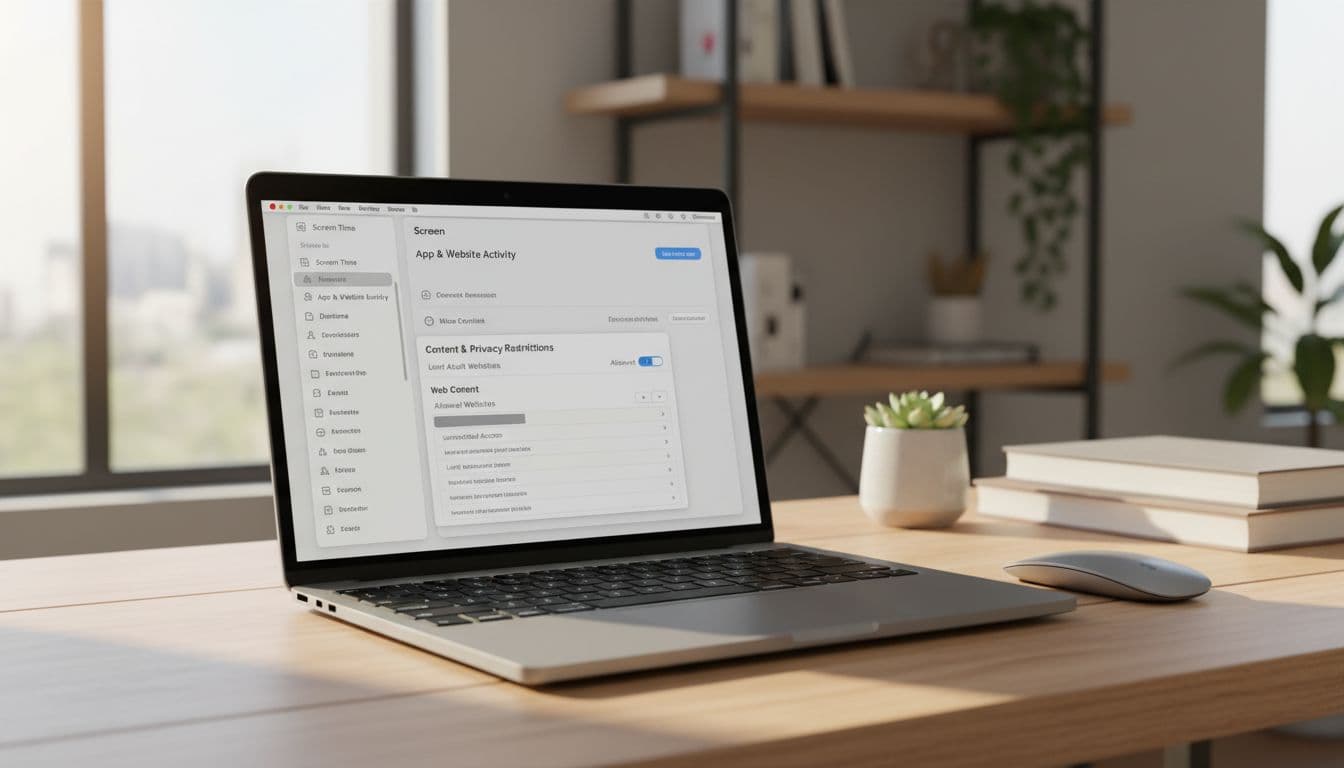 Follow these steps:
- Open System Settings.
- Click Screen Time.
- Choose the user account you want to manage.
- Open Content & Privacy or Content & Privacy Restrictions, then turn it on.
- Click Web Content.
- Select Limit Adult Websites.
- Click Customize.
- Under Never Allow, add the website you want to block.
- Close Settings when you’re done.
If you want a more locked-down setup, choose Allowed Websites Only instead. Then add the few sites you want to permit.
For a basic block, add sites under Never Allow. For a strict safe list, use Allowed Websites Only.
How to add one site, or lock down the web even more
Adding one site under Never Allow works well when you only want to block a few distractions, like social media or streaming sites. It’s simple, and you can still browse the rest of the web as usual.
On the other hand, Allowed Websites Only flips the idea. Instead of blocking a few sites, you approve only a short list. That works best for kids, testing setups, or anyone who wants a narrow, distraction-free browser environment.
The tradeoff is clear. One method is flexible, while the other is much more restrictive.
What Screen Time can and cannot block
Screen Time works most consistently in Safari. It can affect other browsers in some cases, but it doesn’t always block with the same reliability everywhere.
So if a site still opens in Chrome or Firefox, the problem may not be your setup. It’s often the limitation of the method itself. If you need blocking in all browsers, use the hosts file, DNS filtering, or a dedicated app instead.
How to block a website on Mac in every browser with the hosts file
This method is a little more hands-on, but it’s still doable. The hosts file tells your Mac where to send a website request. When you add a blocked site there, your Mac looks locally instead of going to the real web address. If you want a plain-language explanation, this hosts file overview gives the basic idea.
In practice, that means the site fails to load in Safari, Chrome, Firefox, Arc, and most other browsers on that Mac.
The exact steps to edit the hosts file safely
Open Terminal from Spotlight or Applications. Then type sudo nano /etc/hosts and press Return.
Your Mac will ask for your admin password. Type it and press Return again. You won’t see the cursor move much while you type, and that’s normal.
Now add a new line near the bottom for each site you want to block, like this:
127.0.0.1 facebook.com127.0.0.1 www.facebook.com
If you want broader coverage, you can also add an IPv6 version:
::1 facebook.com
After adding your lines, save the file with Control + O, press Return, then exit with Control + X.
Next, flush DNS so macOS uses the new settings right away. Run:
sudo dscacheutil -flushcache && sudo killall -HUP mDNSResponder
Then test the site in your browser. If the block worked, the page should fail to load.
How to undo the block if you change your mind later
Go back into Terminal and open the same file with sudo nano /etc/hosts. Remove the lines you added, then save with Control + O and exit with Control + X.
After that, flush DNS again using the same command. If the site still looks blocked, restart the browser. In some cases, a full Mac restart helps clear old cached results.
Other ways to block websites on Mac, browser extensions and apps
Sometimes you don’t need a system-wide block. Maybe you just want help staying off Reddit during work hours. In that case, browser tools are quicker. For a broader look at current options, this 2026 comparison of Mac website blockers shows where built-in tools end and dedicated blockers start.
Best browser-based tools for Safari, Chrome, and Firefox
For Safari, AdGuard for Safari can block specific sites and filter web content. It’s easy to install, although it’s still browser-based.
In Chrome, StayFocusd and LeechBlock are common picks for timed blocks and daily limits. They work well for personal focus, especially if you live in Chrome most of the day.
In Firefox, LeechBlock NG is one of the best-known options for schedules and time limits. uBlock Origin can also block domains with custom rules, though it’s better known as a content blocker than a strict focus tool.
These tools are fast to set up, but they share one weakness: they’re easier to disable. If you’re trying to outsmart your future self, browser-only tools often lose that fight.
Best apps if you want stronger website blocking
If you want tougher rules, apps make more sense. 1Focus is a good fit for personal focus sessions and cross-browser blocking. Cisdem AppCrypt is often chosen for password protection and simple schedules. Focused Work suits people who want focus timers tied to blocked sites. Scalefusion fits business or school setups where admins manage multiple devices.
If you’re comparing what’s available now, this roundup of blocker apps and extensions is useful for seeing the mix of personal and managed-device options.
Apps usually work better when you want blocks that last, repeat on a schedule, or apply beyond one browser.
Fix common problems when a blocked website still opens
A blocked site can still appear for a few boring reasons. The most common ones are cached pages, DNS not refreshing, a typo in the domain name, missing permission changes, or using a browser that Screen Time doesn’t fully control.
So, before assuming the method failed, check the basics.
Clear cache, flush DNS, and test the block the right way
First, clear your browser cache. Then flush DNS if you used the hosts file. After that, restart the browser, or restart your Mac if you want a clean test.
It’s also smart to test in a private or incognito window. That removes some stored data from the equation and shows whether the block is truly active.
If you blocked a site by domain, double-check the spelling. Also add common versions, such as the plain domain and the www version.
What to do if the block is too easy to bypass
If the block works but feels flimsy, add friction. Use a Screen Time passcode, switch from a browser extension to the hosts file, or install an app with password protection.
You can also combine methods. For example, use Screen Time for quick family controls and a blocking app for work sessions. That layered approach often works better for both focus and parental control.
In short, the strongest block is the one you won’t casually turn off five minutes later.
Blocking a website on Mac doesn’t need to be hard. Screen Time is best for easy setup, the hosts file is better for all-browser blocking, and apps are best when you want stronger control with fewer workarounds. Pick one method today, test it right away, and make sure the block actually sticks.