




VS Code still works well for millions of developers. But in 2026, more people want something faster, lighter, or more focused. Some want native speed. Others want built-in AI. Some just want an editor that doesn’t feel like another browser window.
If you’re looking for a visual studio code alternative, you have real options now. Native editors like Zed and Lapce feel quicker on large projects. AI-first tools like Cursor can speed up everyday coding. Browser editors also make quick setup and team work easier. The right choice depends on your workflow, budget, operating system, and project size.
What to look for before you pick a Visual Studio Code alternative
A code editor is like a daily driver. Specs matter, but comfort matters more. First, check startup speed and memory use. If your laptop struggles with VS Code, a native editor can feel like opening a window after a stuffy day.
Next, look at extension support, debugger quality, Git tools, and AI features. If you live inside plugins, moving to a smaller ecosystem can hurt. If you mostly edit, search, commit, and run tests, you may not miss much at all.
Choose based on your real work, not just the feature list
Web developers often need strong extension support, fast previews, and clean Git integration. Large codebase work needs smooth search, quick file indexing, and low lag when tabs pile up. On older laptops, low memory use matters more than fancy extras.
Team setup matters too. Shared cloud workspaces help distributed teams. Solo developers may prefer a local editor that opens fast and stays out of the way. In other words, pick for the job you do every day, not the demo that looks best on social media.
Know the tradeoff between speed and ecosystem
Here’s the basic tradeoff. Lighter native editors usually feel faster than VS Code. However, they may have fewer plugins, weaker debugging, or less polished language support. Bigger platforms often do more, but they also ask more from your hardware.
That tradeoff is why no single editor wins for everyone. Speed is great, but speed alone won’t help if your whole workflow depends on one extension.
The best Visual Studio Code alternatives worth trying
Zed, best for speed and a modern native feel
Zed is the editor that makes many VS Code users stop and stare for a minute. It’s built in Rust, uses native rendering, and feels very quick on large repos. Scrolling stays smooth, search feels sharp, and the app doesn’t drag as tabs grow. It also includes Git tools, Vim mode, and built-in AI help. Current 2026 coverage shows Windows support is now here, which removes a big reason many developers held back. A recent Zed vs VS Code breakdown gives a useful look at that shift.

The catch is simple. Zed’s extension catalog is still smaller than VS Code’s, and its debugger story isn’t as complete. If raw feel matters most, though, Zed is one of the strongest choices today.
Lapce, best for people who want a familiar layout with less bloat
Lapce feels more familiar right away. The layout and flow make the switch from VS Code easier, yet it starts faster and uses less memory. That’s a good mix if you want less overhead without learning a whole new way to work.
Still, Lapce isn’t as mature across every language and plugin need. Some developers will hit rough edges sooner than they would in VS Code. For many everyday projects, though, it hits a sweet spot.
Cursor, best for developers who want AI built in
Cursor takes a different path. It keeps the VS Code base and layers deep AI help on top, including chat, code edits, and strong completion. That means switching feels easy, because much of the editor already feels familiar.
The downside is that Cursor is not lighter than VS Code. In practice, it can feel just as heavy, sometimes heavier, because AI features add their own cost. Also, the best experience usually needs a paid plan. If AI is a core part of how you write code, Cursor vs VS Code for AI coding is worth reading before you switch.
Lite XL and CudaText, best for very low resource use
These two are the opposite of “kitchen sink” editors. Lite XL and CudaText open fast, stay lean, and work well on older machines. If VS Code feels like too much for quick edits or low-end hardware, these are refreshing.

Of course, that simplicity comes with limits. You won’t get the same IDE-style depth, and advanced debugging or large plugin stacks aren’t the main point.
Eclipse Theia and browser editors, best when flexibility matters most
Eclipse Theia is a vendor-neutral, open-source option that feels close to VS Code in structure. It works well when you want something customizable and team-friendly, though it usually feels heavier than native apps.
Browser editors, like GitHub Codespaces, StackBlitz, and Replit, solve a different problem. They remove setup friction. That’s useful for quick tasks, remote work, and shared environments, especially when “it works on my machine” keeps slowing the team down.
How the top alternatives compare in everyday use
Marketing pages love promises. Daily use tells the truth.
Which editors feel fastest on large files and big projects
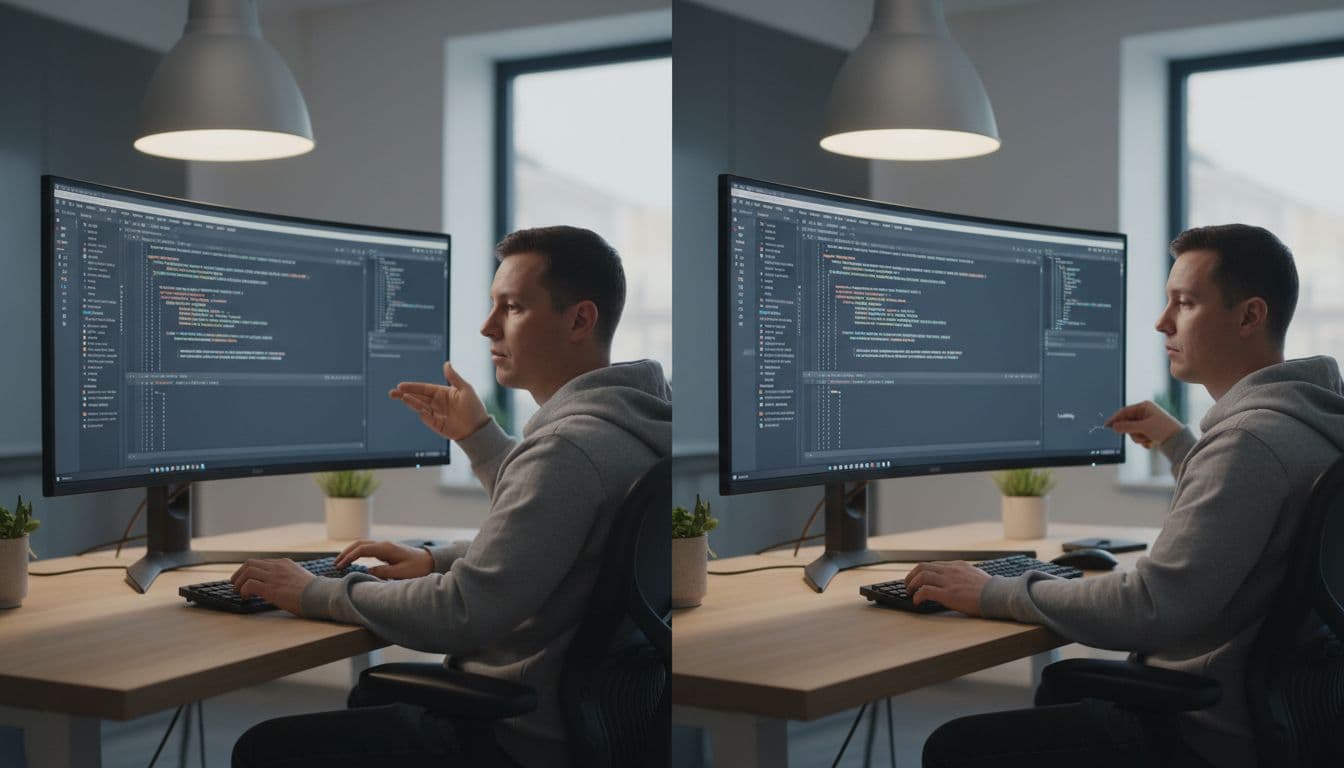
Native apps like Zed and Lapce usually feel snappier than VS Code on huge repos. They also tend to use far less memory. Lite XL and CudaText go even lighter, although they give up advanced features. By contrast, Electron-based tools such as Cursor still carry more weight.
This quick table sums up the everyday feel.
| Editor | Speed feel | Memory use | AI strength | Switch from VS Code |
|---|---|---|---|---|
| Zed | Excellent | Low | Strong built-in | Medium |
| Lapce | Very good | Low | Limited | Easy |
| Cursor | Good | Similar to VS Code | Excellent | Very easy |
| Lite XL / CudaText | Excellent | Very low | Minimal | Medium |
| Theia / browser editors | Good | Varies | Varies | Easy |
The big takeaway is simple: faster editors usually ask you to give up some ecosystem depth.
Which options make switching from VS Code easiest
Cursor and Theia create the least friction. Their layouts, habits, and extension story feel closest to home. Lapce also feels comfortable for many users because the overall structure is familiar.
Zed takes a little more adjustment, while Lite XL and CudaText ask you to accept a simpler tool on purpose. If you want a wider look at today’s field, this 2026 editors comparison is a helpful companion read.
The best Visual Studio Code alternative for each type of user
Best pick for beginners, power users, and teams
Beginners usually do best with Lapce or Cursor. Both feel familiar, so the switch isn’t jarring. Power users who care most about speed and keyboard flow should start with Zed. Teams that need shared workspaces and low setup friction should look hard at Theia or browser-based editors.
Best pick for older laptops, AI-heavy coding, and open-source fans
For older hardware, pick Lite XL or CudaText. If AI is central to your workflow, choose Cursor, or try Zed if you want AI with a lighter native feel. If open-source values matter most, Zed, Lapce, and Theia all deserve a serious look.
There isn’t one best visual studio code alternative for everyone. Start with one fast native editor, one AI-first option, and one lightweight backup. In the end, the right editor depends on how you work, what hardware you use, and whether you care most about speed, plugins, or AI help.