
A page can look perfect on a laptop and still fall apart on a phone. Text wraps badly, buttons slip off-screen, menus miss taps, and forms jump when the keyboard opens. Mobile bugs hide in plain sight, which is why they often survive until late testing.
When people say chrome mobile dev tools, they usually mean two things. First, there’s device emulation inside desktop DevTools. Second, there’s remote debugging on a real Android phone. Both matter. This guide keeps it practical, with quick checks, real-device testing, performance tips, and a simple workflow you can repeat on every project.
Start with the right setup for Chrome mobile dev tools
Chrome gives you two solid ways to test mobile pages. Device Mode is the fast option. Remote debugging on Android is the honest one. Start with the first, then finish with the second.
Use Device Mode for quick mobile layout checks
Open DevTools with F12 or right-click and choose Inspect. Then turn on the device toolbar. Pick a phone preset, switch between portrait and landscape, and drag the viewport to test breakpoints. In a few seconds, you can spot obvious layout issues.
This is the best place to catch early problems, like cards that overflow, text that shrinks too far, or nav bars that wrap. Chrome’s Device Mode guide also covers touch simulation, network throttling, and CPU slowdown options if you want a closer preview.
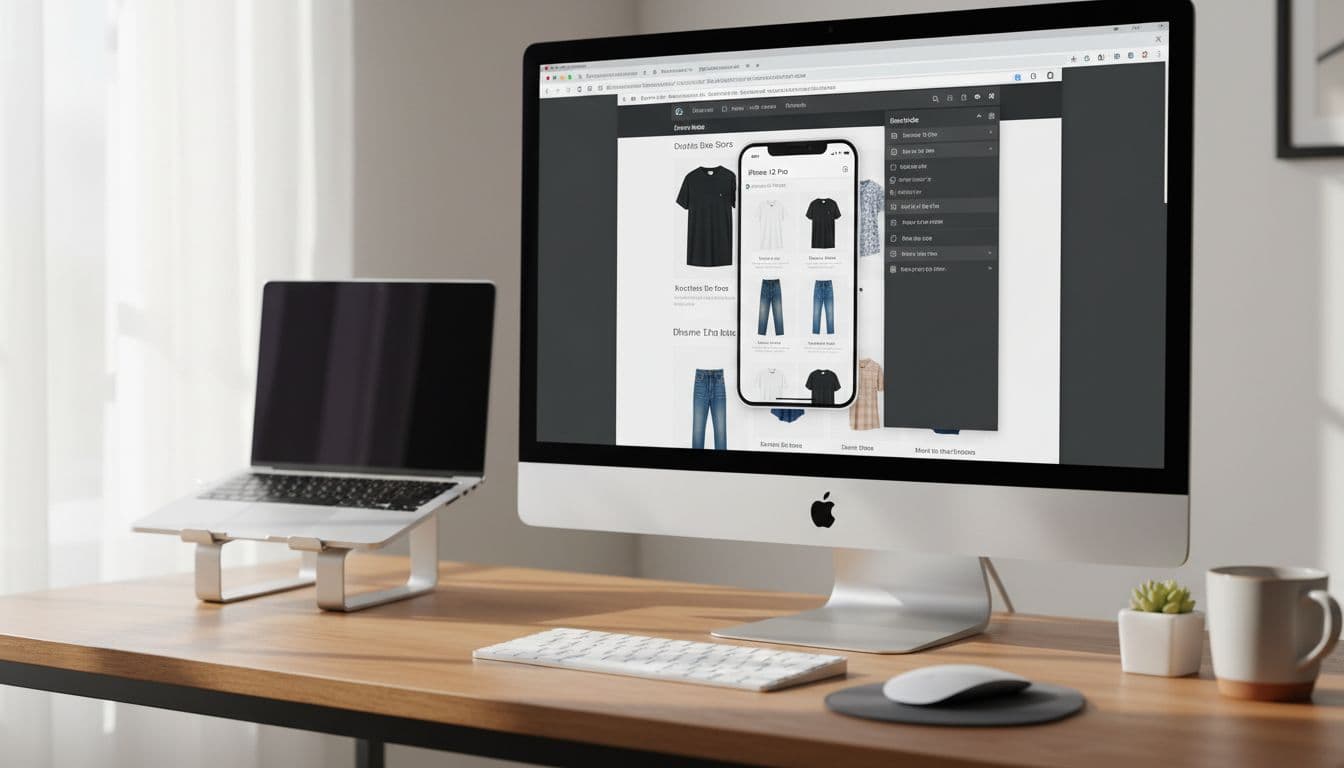
Still, treat emulation like a sketch, not the final draft. It’s fast, but it doesn’t fully match a real phone.
Connect an Android phone for real remote debugging
For final checks, plug in an Android device. On the phone, turn on Developer options and enable USB debugging. Connect it with a reliable cable, keep Chrome open on both devices, then visit chrome://inspect/#devices on your desktop. When your phone appears, open the page on the phone and click Inspect.
You may need to approve a USB prompt on the device first. If the phone doesn’t show up, the cable is often the problem. A charge-only cable wastes a lot of time.
Google’s remote debugging steps walk through the full process. Once connected, you can inspect the live mobile tab, edit CSS, read console errors, and watch changes appear on the phone.
Know when emulation is enough, and when you need a real phone
A common mistake is trusting emulation too much. It catches a lot, but not everything. The trick is knowing where it helps and where it lies.
What Chrome emulation does well for early testing
Device Mode is great for viewport sizes, responsive layouts, CSS tweaks, and quick visual checks. It also helps with basic touch simulation, breakpoint testing, and rough performance checks with throttling.
That makes it perfect during development. If a button is too wide, a modal is clipped, or a sticky bar covers content, you’ll usually catch it here first. It’s the fastest way to fix obvious mobile UI issues before you reach for hardware.
Problems only a real Android device can reveal
Real phones show the messy stuff. Virtual keyboards can push content upward. Touch targets can feel fine with a mouse but awkward with a thumb. Lower-end devices expose slow scripts, janky scrolling, and memory pressure. GPU rendering can behave differently too.
Android WebView is another wildcard, especially if your page runs inside an app shell. Network behavior also feels different on hardware, even when you throttle a desktop browser.
Device Mode is fast. A real Android phone is what you trust before launch.
If you’re close to shipping, remote debugging should be part of the routine.
Use the most helpful DevTools panels for mobile debugging
DevTools has a lot of tabs, but mobile work usually comes down to four. If you focus on these, you’ll solve most phone-specific bugs without getting lost.
Fix layout and style issues in Elements
The Elements panel is where many mobile fixes begin. Inspect the broken part, then test CSS live. Look for hidden overflow, bad spacing, fixed widths, and media queries that don’t fire when expected.
This is where you find out why a button sits off-screen, why text feels cramped, or why a sticky header overlaps the first section. Small edits here can save a full reload cycle.
Catch JavaScript errors and test ideas in Console
Open Console when taps stop working or forms fail silently. You’ll see errors, warnings, failed logs, and messages from the live mobile page. That alone can explain a lot.
Current DevTools also includes practical AI help, such as Console Insights for explaining errors or suggesting likely CSS and layout fixes. It’s helpful for triage, but you still need to test the result on the page.
Find slow requests and broken calls in Network
Network is where mobile issues stop being mysterious. Check for failed API calls, oversized images, duplicate requests, and caching mistakes. On slower connections, these problems become much easier to feel.
You can also use request and response overrides to fake edge cases, like a delayed endpoint or a 500 error. That’s a simple way to test spinners, retry states, and empty states before users do it for you.
Measure load speed and interaction lag in Performance
When a page feels slow, record a trace. On a real phone, that trace is far more honest than a desktop guess. Look at LCP for main content load, CLS for layout shifts, and INP for input delay. In plain English, ask three things: did it load fast, did it jump around, and did taps respond quickly?
The Performance features reference explains the panel well. As of March 2026, DevTools can also show live metrics, Lighthouse results inside the panel, and AI-based tips. Those hints save time, but always confirm a fix with another trace.
Build a simple workflow that makes mobile testing easier
A repeatable process beats heroic debugging. Keep it short, and you’ll actually use it.
A fast test routine for every mobile page
Use this order on each important page:
- Start in Device Mode and check common breakpoints.
- Test menus, forms, modals, and sticky elements.
- Move to a real Android phone with remote debugging.
- Review Console and Network for errors or failed calls.
- Record a short Performance trace and fix the biggest slowdown first.
That routine takes less time than chasing random bugs later.
Useful extras that can save time
Workspaces let you save DevTools edits back to local files, which cuts down on copy-paste. Recorder is handy for replaying user flows. If your app uses React, React DevTools can expose component state much faster than DOM hunting.
Advanced teams may also look at the newer DevTools MCP server for AI coding agents, but that’s optional. For most projects, the core Chrome tools already cover the day-to-day work.
A page that looks fine on desktop can still fail under a thumb, a slower CPU, or a real keyboard. That’s why chrome mobile dev tools works best as a mix of both methods, emulation for speed, remote debugging for truth. Test one page on a real Android phone today, then fix the first issue you spot. That habit improves mobile quality fast.