
Slow queries rarely arrive alone. First you see a CPU spike, then blocking spreads, and soon users start asking why the app feels stuck.
That is why sql server performance monitoring tools matter. They help DBAs, developers, and IT teams catch trouble earlier, narrow the cause faster, and keep uptime from slipping away. A good tool doesn’t only watch one graph. It shows what changed, why it changed, and how long it has been building.
The options in 2026 range from built-in Microsoft screens to full monitoring platforms. What matters most is how well a tool fits your workload, your team, and the kind of problems you fight every week.
What good SQL Server performance monitoring tools actually help you do
At the simplest level, monitoring gives you visibility. You can see CPU, memory, storage use, active sessions, and query activity while a problem is happening. That alone helps. Still, raw numbers rarely tell the full story.
A better tool adds context. It tracks waits, blocking chains, deadlocks, memory pressure, disk I/O, job failures, and database growth over time. It also stores history, so you can compare today with last Tuesday at 9 a.m., when the same report slowed down. That turns guesswork into evidence.
For teams shopping the category, TrustRadius’ SQL performance monitoring overview gives a useful high-level view of how these platforms are typically used. The core job is simple: shorten the time between “something feels off” and “we found the cause.”
Spot the real cause of slowdowns, not just the symptom
A slow query is often only the surface problem. The real cause may be blocking, a bad index, parameter sniffing, a changed execution plan, or storage latency. Good monitoring tools connect those dots.
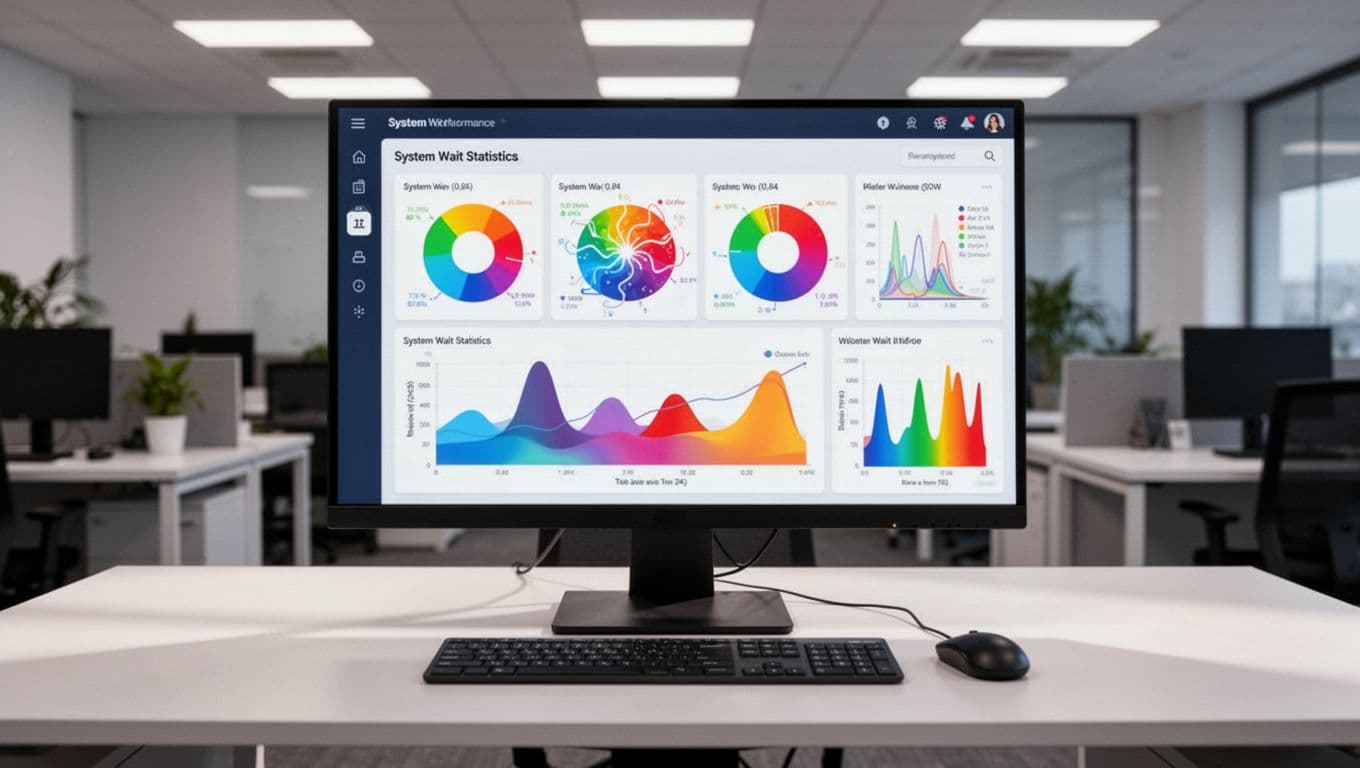
That is where wait stats, query plans, and historical playback help. If a report ran fine yesterday but drags today, you want to see what changed. Did the plan flip? Did another session hold locks longer than normal? Did I/O latency jump during backups?
Tools that preserve short-term and long-term history make this much easier. Instead of staring at a live dashboard after the problem passes, you can replay the event and follow the chain of cause and effect.
Catch issues early with smart alerts and baselines
Static thresholds create noise. A CPU alert at 80 percent might matter on one server and mean nothing on another. Baselines fix that by learning what “normal” looks like for each workload.
So instead of sending alarms for every spike, better tools flag unusual changes. Maybe blocking lasts longer than it usually does on payroll day. Maybe tempdb growth is steeper than the server’s normal pattern. Those alerts are more useful because they reflect the system’s real behavior.
In 2026, more vendors talk about AI and machine learning. The useful part is not the label. The useful part is lower-noise alerting, anomaly detection, and better forecast signals for storage or workload drift.
If a monitoring tool floods the team with alerts, people stop trusting it.
The top SQL Server performance monitoring tools to compare in 2026
The right choice depends on how many SQL Server instances you manage, how much history you need, and whether you’re watching on-prem, Azure SQL, or both. Some teams only need quick checks on one server. Others need estate-wide dashboards, baselines, and reporting for dozens of instances.
Built-in Microsoft tools are a solid starting point for basic monitoring
SQL Server Management Studio still gives you a strong first step. Activity Monitor is handy for real-time checks, especially when you need to see waits, expensive queries, blocked processes, and resource use on one server. Built-in reports also help with top queries, disk usage, and performance snapshots.
Query Store adds another layer because it tracks query plans and runtime stats over time. That is useful when performance regresses after a deploy or upgrade. Recent SSMS 20.x updates also make wait-related query details easier to inspect during tuning, which helps during live troubleshooting.
The limits show up quickly in larger environments. Native tools do less with alerting, long-term retention, and multi-server views. They are strong for reactive work on a single instance, but weaker for broader monitoring across an estate.
Third-party tools add deeper alerts, history, and easier root cause analysis
Third-party platforms fill the gaps that built-in tools leave behind. They usually add cleaner dashboards, longer retention, better drill-down, and faster root cause views.
A quick comparison helps:
| Tool | Strong point | Likely drawback | Best fit |
|---|---|---|---|
| SolarWinds SQL Sentry | Deep root cause analysis, strong dashboards, Azure SQL support | Premium pricing for smaller teams | Busy estates that need fast drill-down |
| Redgate Monitor | Fast setup, clean alerting, easy-to-read dashboards | Less broad outside the SQL world | SQL-focused teams that want quick value |
| IDERA SQL Diagnostic Manager | Baselines, forecasting, strong diagnostics | More setup and complexity | Larger teams with hybrid needs |
| Quest Spotlight | Strong visual drill-down and estate views | Interface can feel older | Teams that want broad visibility |
| ApexSQL Monitor | Focused SQL monitoring and query insight | Smaller ecosystem than larger suites | Shops already using ApexSQL tools |
| dbForge Monitor | Free, lightweight, works inside SSMS | Lighter history and enterprise features | Small teams and budget-conscious admins |
For teams that want a premium platform with broad diagnostics, SolarWinds SQL Sentry remains one of the most visible choices in 2026. It is strong at showing how waits, queries, agents, and system resources line up on a timeline, which speeds up troubleshooting.
Free and low-cost options have improved too. dbForge Monitor is easy to like if your team already lives inside SSMS. Another option worth watching is Erik Darling’s free PerformanceMonitor project, a newer open-source approach that focuses on collectors, wait data, and multi-server visibility without the price of a full suite.
How to choose the right tool for your team and workload
A monitoring tool only pays off when people use it every day. That sounds obvious, but many teams buy based on feature lists and later find the dashboards too noisy or too hard to learn.
Start with the shape of your environment. One or two SQL Server instances on-prem call for a different tool than a hybrid setup with Azure SQL, virtual machines, and Always On groups. Then look at alert quality, setup time, historical retention, and how fast someone can move from a red alert to the exact query or wait behind it.
Pick features that match your daily pain points
If your team is small, fast visibility may matter more than advanced forecasting. In that case, built-in tools, dbForge Monitor, or a free project may be enough.
A growing company often needs multi-server monitoring, decent history, and alerts that don’t cry wolf. That is where Redgate Monitor, SQL Sentry, IDERA, or Quest usually make more sense. Enterprise teams may also want baselines, storage forecasting, and role-based dashboards for both DBAs and managers.
If your slowdowns tie back to the wider stack, not only SQL Server, PRTG’s SQL Server monitoring approach is worth a look because it connects database health with host, network, and service metrics. That broader view helps when SQL symptoms start outside the database.
Test the dashboard, the alerts, and the reporting before you commit
Free trials matter here. During a test, judge the tool on daily use, not on demo polish.
Pay attention to setup time, drill-down depth, and alert noise. Also check how well the tool retains history and whether reports make sense to both technical staff and managers. A dashboard can look sharp and still fail when you need to explain last month’s blocking trend to leadership.
Cloud and hybrid support is another key checkpoint in 2026. Many teams now run a mix of on-prem SQL Server and Azure SQL, so the tool should cover both without awkward gaps.
Best practices that make any SQL Server monitoring tool more useful
The best platform still fails if you watch the wrong things or ignore alerts. Monitoring works when the team treats it as part of normal operations, not only as an outage screen.
Track a small set of metrics that clearly show database health
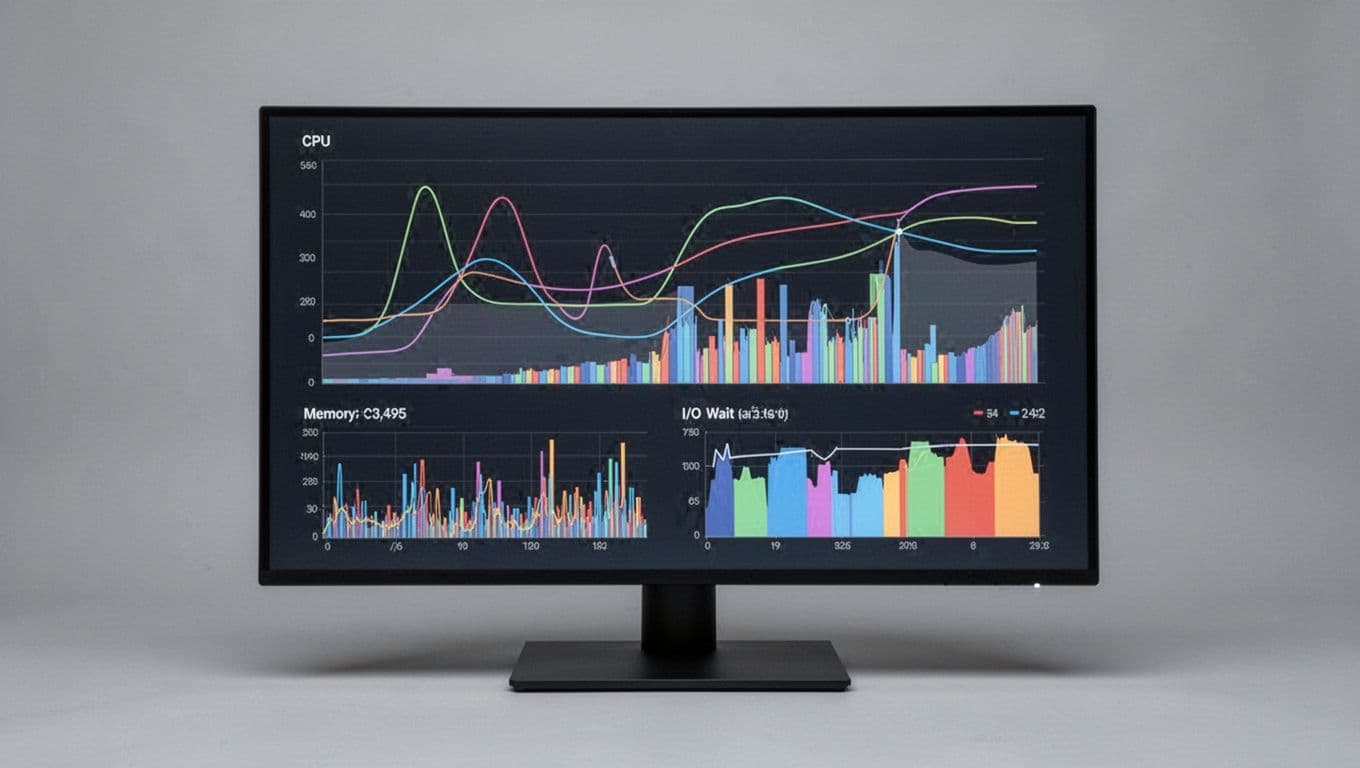
Start with a focused group of signals: waits, query duration, blocking, deadlocks, CPU, memory, disk I/O, job failures, and database growth. Those metrics usually expose the story fast.
Teams often make the mistake of tracking everything because the tool can. That crowds the dashboard and hides the real problem. Fewer charts, chosen well, beat a wall of colored gauges.
Review trends regularly, not only during outages
Weekly or monthly reviews help you spot slow decline before users feel it. Maybe a query gets a little slower each release. Maybe storage grows faster than expected. Maybe one instance keeps showing the same wait pattern after patch windows.
That kind of trend review also helps with capacity planning. In 2026, more teams want predictive monitoring and smarter forecasts, but the value still comes from simple habits: review the data, tune what repeats, and adjust alert thresholds as workloads change.
Built-in tools still matter, especially for quick checks and one-off troubleshooting. Yet larger or more complex environments usually benefit from stronger alerting, longer history, and faster root cause analysis.
The best choice depends on your environment, your team’s skill level, and how early you need to catch trouble. Pick the tool your team will trust and use often, because better monitoring leads to fewer surprises, faster fixes, and steadier SQL Server performance.